Introduction
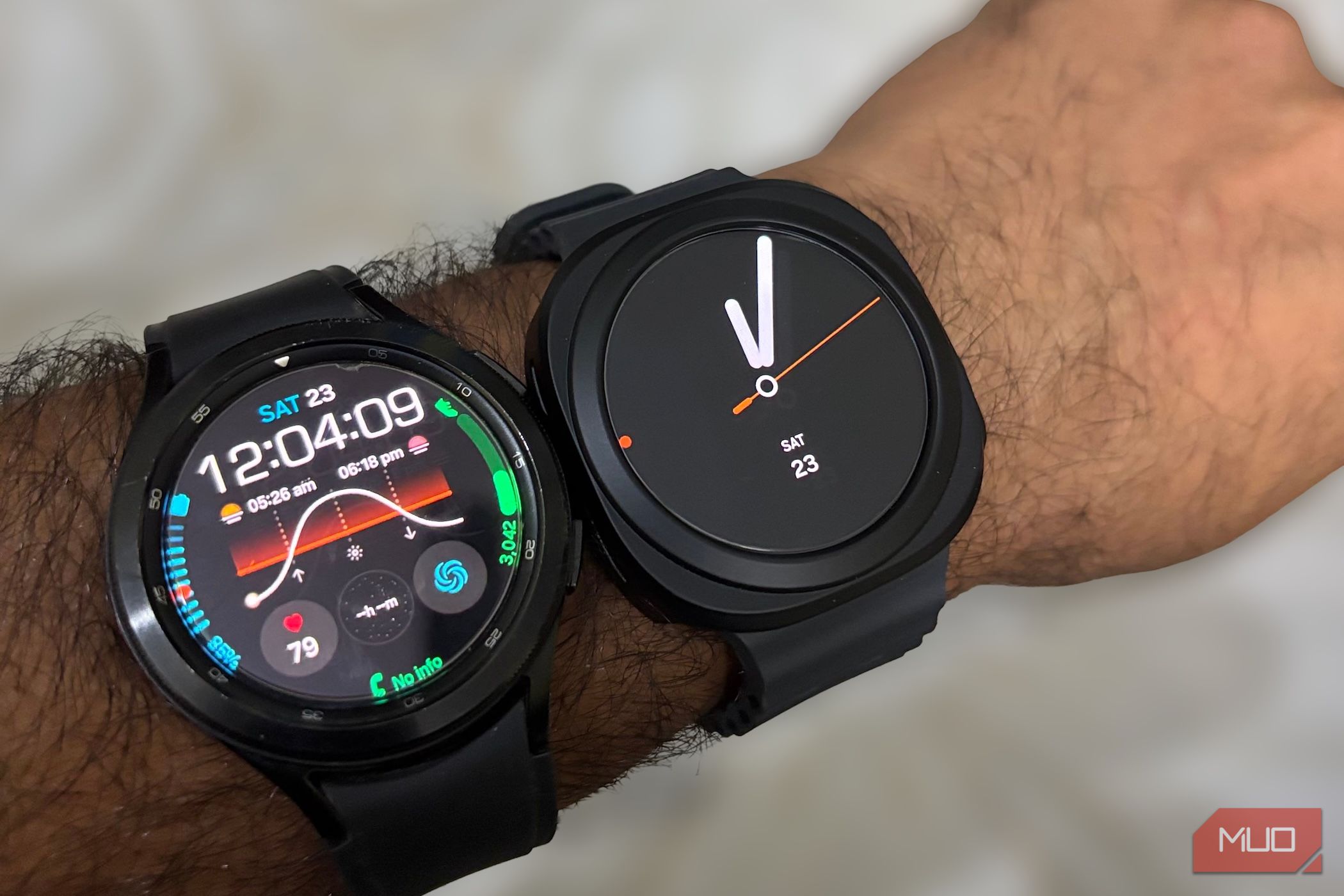
That old Galaxy Watch gathering dust in your drawer — whether it’s a Watch 4 Classic, Watch 5, or another model — still packs serious health-tracking hardware: a heart rate sensor, SpO2 monitor, accelerometer, and more. Instead of letting it sit idle, you can repurpose it as a dedicated, always-on health monitor that keeps tabs on your vital signs without interrupting your daily routine. This guide walks you through converting your former smartwatch into a focused wellness device that might just notice something important before you do.
What You Need
- Old Galaxy Watch (any model with heart rate and SpO2 sensors)
- Charger (original or compatible)
- Smartphone (for initial setup and periodic data sync — optional if watch supports standalone Wi-Fi)
- Wi-Fi network (for data sync)
- New watch band (optional, for comfort if you plan to wear it)
- Samsung Health app (on your phone or via web dashboard)
Step-by-Step Guide
Step 1: Factory Reset Your Old Galaxy Watch
Start fresh to remove any previous accounts and settings. On the watch, go to Settings > General > Reset > Factory data reset. Confirm when prompted. This erases all data and ensures a clean start as a health-only device.
Step 2: Pair the Watch to a Dedicated Phone (or Use Standalone Mode)
If you still have your old phone or a secondary device, pair the watch with it using the Galaxy Wearable app. Alternatively, some Galaxy Watch models (like the Watch 5) can operate in standalone mode via Wi-Fi without a phone — check your watch’s settings under Connections > Wi-Fi. For simplicity, pairing with a phone that’s not your daily driver works best for receiving health notifications and syncing data to Samsung Health.
Step 3: Disable All Non-Health Features
To turn your watch into a pure health monitor, disable everything that isn’t health-related. Navigate to Settings > Sound & vibration and turn off Media volume and Notification sounds. Open Apps and uninstall or disable any third-party apps you don’t need (games, productivity tools, etc.). Then go to Notifications and block all app notifications — you only want health alerts. Finally, under Display, set a low brightness and enable Always On Display (optional) but disable raise-to-wake to save battery.
Step 4: Configure Health Sensors for Continuous Monitoring
Open the Samsung Health app on the watch (or use the paired phone). Enable Heart rate measurement to Continuous (or Every 10 minutes for battery savings). Turn on Stress measurement and SpO2 monitoring — set them to measure automatically while idle. If your model supports it, enable Sleep tracking and Fall detection. These sensors will run in the background, collecting data without you needing to interact.
Step 5: Decide on Placement — Wear It or Dock It
You have two options: wear it on your wrist for 24/7 tracking (most accurate for heart rate and movement), or place it on a nightstand to monitor room conditions (temperature, ambient light) and use as a sleep tracker while you wear something else. For best health data, wearing it is recommended. If you choose to wear it, consider a softer band from Amazon or your local store to improve comfort during sleep.

Step 6: Sync Data Periodically to Samsung Health
When the watch is within range of the paired phone or a known Wi-Fi network, it will automatically sync health data to the Samsung Health app. To force a sync, open the app on your phone and pull down to refresh. You can also set up Auto sync under Settings > Accounts and backup on the watch. For longer battery life, sync only once or twice daily — the watch can store up to 30 days of data locally.
Step 7: Review Data and Set Up Alerts
Use the Samsung Health app to check trends in heart rate, SpO2, stress levels, and sleep quality. Set up abnormal heart rate alerts (high/low) and SpO2 low alerts if your model supports them. These notifications can be a lifesaver — literally. For example, you’ll get a buzz if your heart rate drops below 40 BPM or rises above 120 BPM while resting. Review the logs weekly to spot any concerning patterns and share them with your doctor.
Tips for Success
- Battery management: Turn off unnecessary sensors like GPS and Wi-Fi when not syncing. Use a daily charge cycle — place the watch on its charger while you shower or during meals. With heavy health tracking, expect 1–2 days of battery, so charge twice a day if needed.
- Privacy first: Keep the watch paired to an old phone that stays at home. Avoid connecting it to your primary phone’s calendar or messages — the whole point is to keep health data separate from your digital life.
- Test fall detection: If your watch has it, test the fall detection by simulating a fall (with care). Ensure the emergency contacts are set up in the Samsung Health app. This feature could be crucial for elderly users or those living alone.
- Check for software updates: Even though the watch is old, Samsung may still push security and sensor improvements. Go to Settings > Software update on the watch and install any pending updates.
- Consider a dedicated spot: If you don’t want to wear it, mount the watch on a bedside stand using a sticky pad or a simple phone stand. It will track movement during sleep and ambient noise, but note that wrist-based heart rate accuracy is superior.
By following these steps, you successfully repurpose your retired Galaxy Watch into a focused health hub that works around the clock. Its sensors no longer sit idle — instead, they keep a quiet, continuous watch over your wellbeing. And that, ironically, might be the most useful thing your old smartwatch has ever done.